
How to Colorize an Old Family Photo (Step by Step)
Bring a black-and-white family photo to life with AI colorization. A simple guide to realistic results in under a minute.
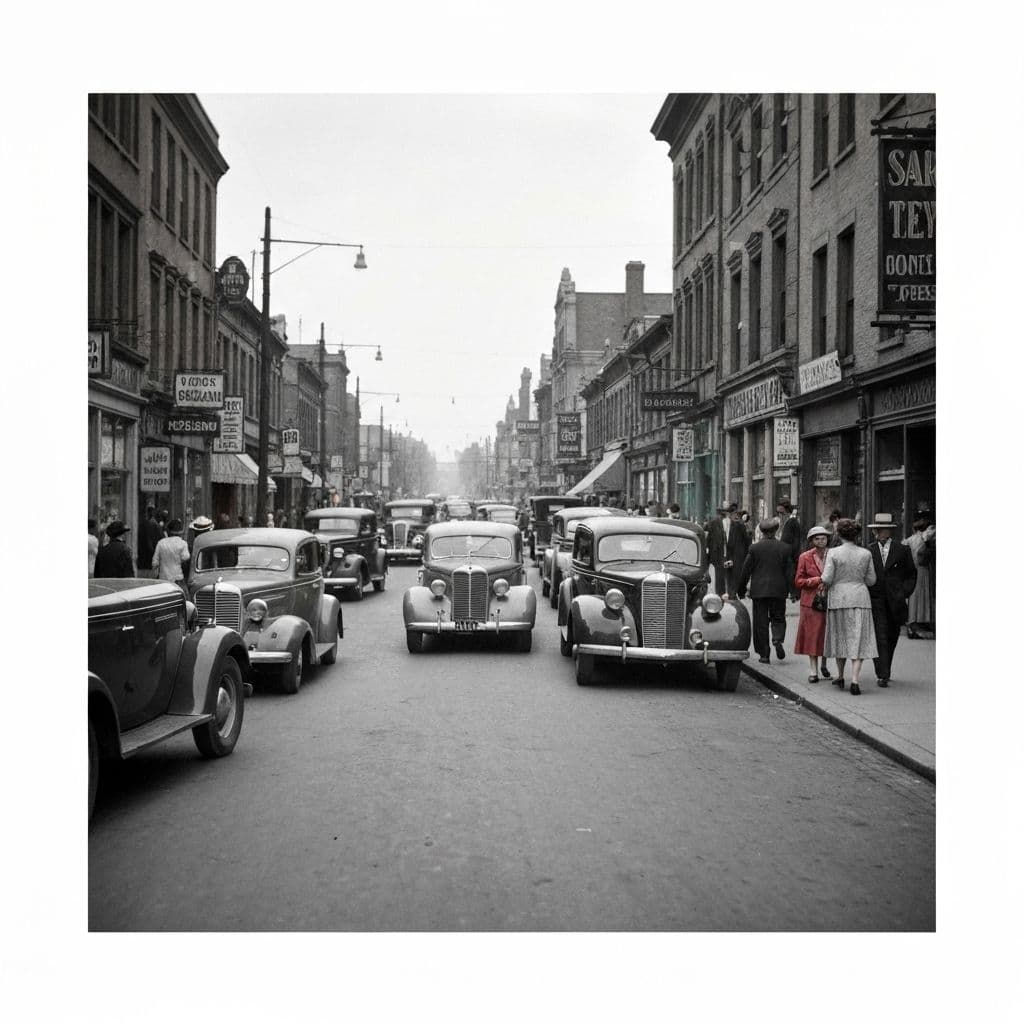
Colorizing an Old Family Photo Takes Under 2 Minutes
The process most people imagine — painstakingly painting color onto scanned prints in Photoshop — is obsolete. Modern AI colorization delivers results in seconds that often look indistinguishable from genuine color photography.
This guide walks through the exact steps to colorize a family photo using Restory, plus the common mistakes to avoid.
Step 1: Pick the Right Photo
Not every photo colorizes equally well. The best candidates are:
- Clear, high-contrast black-and-white portraits — the AI has lots of detail to work with
- Photos from the 1930s-1970s — the golden era for film grain and tonal range, producing the best AI training data match
- Group photos outdoors — the AI excels at natural scenes (grass, sky, skin tones)
Harder cases:
- Very early prints (1850s-1900s) — limited detail confuses the AI
- Photos already tinted or partially colored — the AI may struggle to distinguish real color from toning
- Extremely faded photos where tonal range is compressed
Step 2: Clean Up Damage First
Colorization applied to a damaged photo colorizes the damage too. Always clean up physical issues before adding color:
- Remove Scratches (5 coins) if there are visible marks or tears
- Enhance Details (4 coins) to recover lost sharpness
- Restore Faces (5 coins) for portraits
Then, and only then, apply Colorize.
For a clean, undamaged photo you can skip straight to Colorize.
Step 3: Apply Colorize
In Restory, select Colorize (4 coins). The AI analyzes the scene and applies natural colors in about 10-15 seconds.
The output is fully colored, with:
- Natural skin tones adjusted to ethnicity and era
- Plausible clothing colors (AI can't know the actual color, but picks contextually reasonable ones)
- Historically appropriate sky, grass, and environmental colors
Step 4: Re-Roll if Needed
AI colorization is stochastic — each run produces slightly different results. If the first attempt:
- Made someone's shirt an unusual color — run Colorize again; results change each time
- Created a purple sky or green skin — re-run; these are rare glitches
- Looks too desaturated — the AI might have interpreted the photo as overcast; re-running usually fixes this
Most photos land on a satisfying result within 1-3 attempts. Each attempt costs 4 coins, so even a challenging photo maxes out at 12 coins (about EUR 1.50 with the 200-coin pack).
Step 5: Compare and Save
In Restory's gallery, view before and after side by side. Seeing the original alongside the colorized version is often emotionally powerful — especially for photos of deceased relatives.
Save at maximum quality. Back up to iCloud and an external drive.
Managing Expectations
AI colorization is a plausible prediction, not a reconstruction of truth. The AI cannot know that grandma's dress was royal blue — it makes an educated guess. Accept this. The goal isn't historical accuracy in every pixel; it's emotional reconnection with the moment.
If the AI picks a wildly wrong color (red where you know something was blue), that's worth re-running. If it picks a plausible-but-wrong color (navy where something was actually forest green), that's the AI working as designed.
Colorizing an Entire Family Album
If you have 20-100 photos to colorize:
- Clean each one first (Remove Scratches + Enhance + Restore Faces as needed)
- Colorize in batches; the 200-coin pack at EUR 24.99 covers about 50 fully-restored photos
- Create a digital album grouping before/after pairs
- Print the best dozen as a photo book for family
Total budget for a 50-photo colorization project: about EUR 25-40 depending on damage levels. Same project at a professional service: EUR 1500-5000.
For deeper context, see our full guide to colorizing black and white photos, the colorize family photos guide, or our Restory vs Remini comparison for a side-by-side feature breakdown.
Troubleshooting: When Colorization Goes Wrong
The sky comes out purple or green
Happens occasionally when the AI misreads a cloudy sky as distant walls or tree canopy. Re-run Colorize — because the neural network is stochastic, a second attempt almost always produces a natural sky.
Skin tones look orange or grey
Usually a sign the original scan has a strong color cast that the AI is amplifying. Run Enhance Details (4 coins) first to neutralize the cast, then Colorize on the cleaned result.
Clothing colors look wrong
Expected behavior. The AI cannot know that grandma's dress was royal blue — it picks a contextually plausible color. For clothing specifically, it's normal to accept the plausible color rather than the historically accurate one. If it really matters, you can manually color-correct in a separate editor after AI colorization.
The result looks flat or desaturated
Usually means the original scan is too low-resolution for the AI to interpret surfaces confidently. Rescan at 600 DPI or use a modern iPhone following the digitizing guide, then re-colorize.
Timing: How Long to Plan For
A single photo: under 2 minutes from capture to final colorized result.
An entire album of 50 black-and-white photos: about 2-3 hours of active work, spread across 2-3 evening sessions. Capture 50 photos in one session (45 minutes), then restore-and-colorize 20 per evening (~1 hour each). This pacing avoids restoration fatigue, where later photos get less attention than earlier ones.
For reference, a professional hand-colorist would take 100-400 hours for the same 50 photos and charge EUR 2,500-20,000. AI colorization in Restory is about 200x faster at roughly 1% of the cost.
Related Guides
- How to digitize old photos with your iPhone
- How to restore water-damaged photos
- How AI photo restoration works
Frequently Asked Questions
How accurate is AI colorization compared to hand-painted colorization?
AI produces a plausible prediction in 10 seconds; a skilled human hand-colorizer produces a more accurate, research-based reproduction in 1-4 hours. For family photos where emotional impact matters more than forensic accuracy, AI wins on every dimension: speed, cost, ease of use, and acceptable quality. For museum-grade reproduction where specific historical colors must be verified, human colorization still has the edge. The right tool depends on your goal.
Can I colorize a color photo that has faded, or only black-and-white ones?
Both. The Colorize feature works best on genuinely black-and-white photos, but also handles severely faded color photos where the original tones have dropped to near-monochrome. If your faded color photo still has visible tint, run Enhance Details first (4 coins) to recover as much original color as possible, then decide whether additional Colorize is needed.
Will the colorized version replace my original?
No. Restory saves the colorized version as a new file. Your original black-and-white scan remains untouched in your camera roll. This is standard non-destructive editing — you can always go back to the original or try different colorization attempts without losing anything.
Do it yourself with Restory
Advanced AI on your iPhone. 6 restoration tools. Free download.
Download on App StoreMore How-To Guides
How to Restore Photos of Historical Places That No Longer Exist
Family photos sometimes capture places that have changed or disappeared. A guide to restoring these visual time capsules.
How to Restore an Individual Student Photo (School Portrait)
School portraits document every year of childhood. A guide to restoring individual student photos from every era.
How to Restore Flood-Damaged Photos (Emergency Guide)
A flood can destroy decades of family photos in hours. Here's what to do in the first 24 hours and how AI can save damaged photos afterward.