
How to Restore Water-Damaged Photos (Complete Guide)
Water-damaged photos can be rescued with AI. Here's a step-by-step guide to save stained, warped and blurry images without a darkroom.
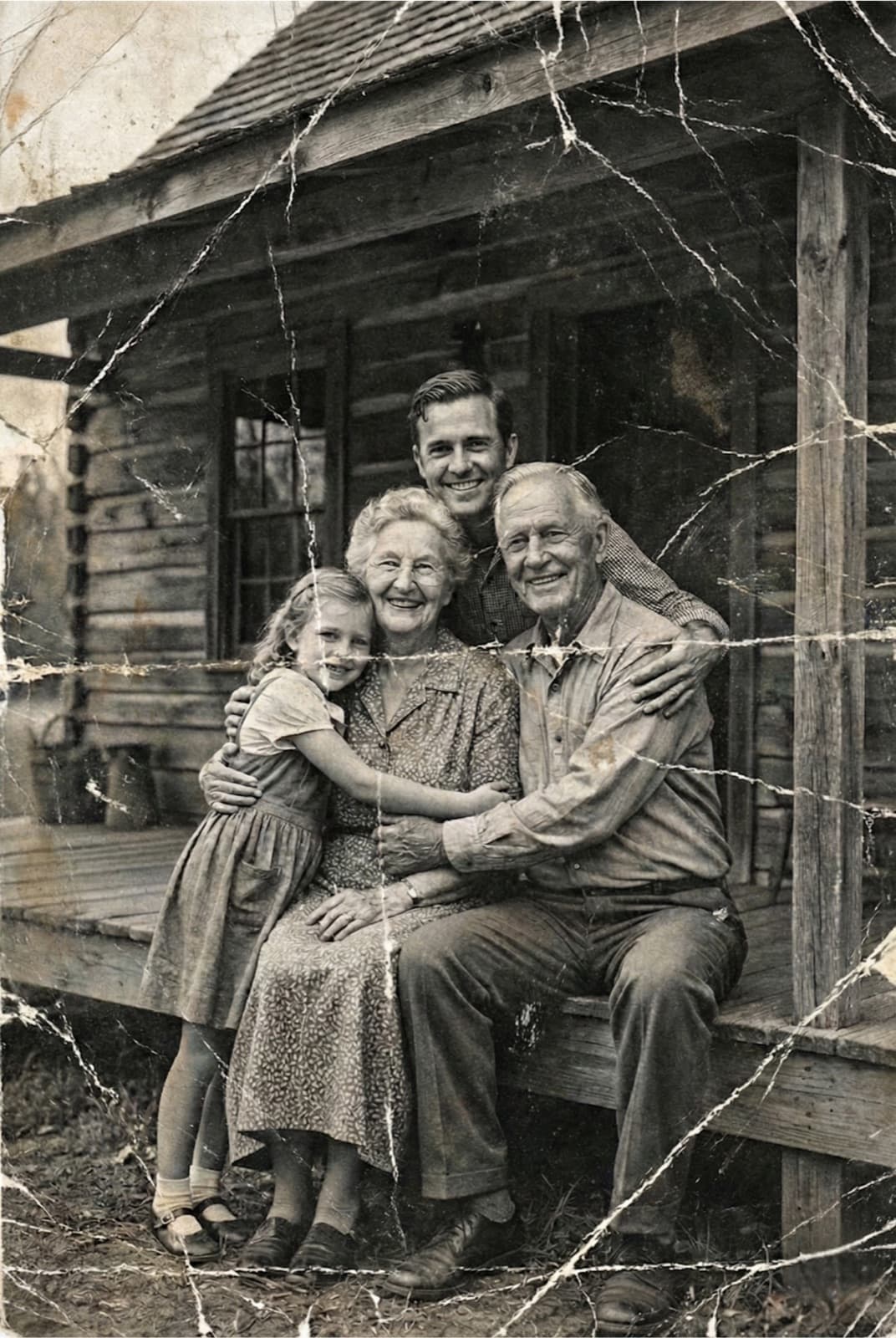
Water-Damaged Photos Are Fixable (Usually)
The short answer: yes, most water-damaged photos can be restored if you still have a physical or digital copy. Water doesn't remove the original emulsion — it creates stains, softens edges, bleeds colors, and warps paper. All four problems respond well to modern AI restoration.
This guide walks through the entire workflow, from drying a salvaged print to producing a clean, shareable digital version using Restory on iPhone. No scanner required — a smartphone works.
What Water Damage Does to a Photograph
Understanding the damage helps you choose the right restoration features. Water typically causes:
- Stains — brown, yellow, or white marks where the emulsion dissolved or minerals deposited
- Warping — paper curls and wrinkles as it dries unevenly
- Fading — long exposure to water leaches color, leaving pastel tones
- Softening — sharp lines blur where the emulsion migrated
- Sticking — photos stored wet can fuse to neighboring prints or glass
The earlier you act on a wet photo, the more you save. But even decades-old water damage can be reversed digitally.
Step 1: Rescue the Original (if wet)
If the photo is still wet, stop reading and do this first:
1. Separate stuck photos gently
Do not pull. If two prints are stuck, submerge them in cold distilled water for 20-30 minutes and they'll release on their own.
2. Rinse carefully
Hold the photo emulsion-side up under a gentle stream of cold distilled water. Do not rub. Dust and silt wash off naturally.
3. Air-dry flat
Lay on a clean paper towel, emulsion-side up. Never use a hair dryer — heat warps the gelatin further. Change the towel every few hours as it absorbs moisture.
4. Flatten after drying
Once fully dry (48-72 hours), sandwich the photo between two sheets of archival paper and place under a heavy book for a week.
If your photo is already dry and just shows old water damage, skip to Step 2.
Step 2: Capture the Photo Digitally
Good digital restoration starts with a good capture. You don't need a scanner.
Use your iPhone camera
- Place the photo on a flat, matte surface under soft, indirect daylight (near a window but not in direct sun)
- Hold the phone directly above, parallel to the photo
- Disable flash — it creates harsh reflections
- Fill the frame with the photo, leaving a small margin
- Capture at maximum resolution
For very faded images, use the phone's HDR mode to recover shadow and highlight detail that might otherwise be lost.
Step 3: Apply AI Restoration in Restory
Open Restory and upload your captured photo. Apply these features in order for water-damaged images:
1. Remove Scratches (5 coins)
Water damage leaves stains and streaks that the scratch-removal AI treats identically to physical scratches. This is the first pass because it cleans up the noise before anything else.
2. Restore Faces (5 coins)
If the photo is a portrait, apply this next. Water damage often blurs facial features first because the emulsion is thinnest there. The AI reconstructs eyes, mouths, and skin texture with surprising accuracy.
3. Enhance Details (4 coins)
The general sharpness boost. This pass recovers fine details that water had softened — clothing patterns, background texture, environmental details.
4. Recreate (6 coins, Premium)
Only use this if parts of the photo are completely gone (torn corners, dissolved sections). The Recreate feature uses generative AI to rebuild missing areas based on context.
5. Colorize (4 coins)
Apply last, and only if the original was black-and-white or so faded it's effectively monochrome. Colorizing a damaged photo before cleanup means the AI also colorizes the stains.
Total coin cost for a severe water-damaged photo: 18-24 coins. With the 200-coin pack at EUR 24.99, that's roughly EUR 2-3 per photo.
Step 4: Fine-Tune and Export
After AI processing, inspect the result. If:
- A stain remains — re-run Remove Scratches once more; the AI sometimes catches what the first pass missed
- The face looks plasticky — the enhancement was too aggressive; re-upload the intermediate result and skip Restore Faces
- Colors look oversaturated — re-colorize; the stochastic nature of the AI produces different results each pass
Save the final image at maximum quality and back it up to iCloud, Google Photos, and an external drive.
When to Give Up (Rarely)
A photo is genuinely beyond saving if:
- Water damage removed entire sections of the image (not torn, but dissolved)
- The emulsion has completely flaked off, leaving only paper
- Mold has eaten through the photograph before drying
In these cases, generative AI can invent a plausible image, but it won't be a restoration — it'll be a new image inspired by the remains. Set expectations accordingly. For most water-damaged family photos, though, AI restoration produces results that would have been impossible even ten years ago.
Cost Comparison vs Professional Services
A professional photo restoration service typically charges:
| Service Type | Typical Cost |
|---|---|
| Light water damage | $50-100 per photo |
| Severe water damage | $150-300 per photo |
| Archival scanning only | $5-10 per photo |
With Restory, the equivalent restoration costs roughly EUR 2-3 per photo. For a box of 50 water-damaged family photos, that's EUR 100-150 versus EUR 2500-15000 at a pro service. The trade-off is that AI results are excellent but not perfect — a skilled human restorer can correct errors the AI makes. For most family archives, AI is the right tool.
If you're comparing tools before committing, our Restory vs Remini comparison breaks down why coin-based pricing beats subscriptions for occasional use, and the free photo restoration apps guide covers no-cost options.
Related Guides
Frequently Asked Questions
Can I restore a photo that's been wet for decades?
Yes. Water damage is permanent in the physical print, but once you digitize it, AI restoration can reverse the visual symptoms — stains, fading, softness — regardless of when the damage happened. A photo wet in 1960 and digitized today responds to AI just as well as one damaged last month. The condition of the paper doesn't limit the digital restoration once you have a good scan.
Should I try to restore the physical print myself?
Usually no. DIY cleaning of a physical print risks making the damage worse — solvents dissolve emulsion, rubbing scratches the surface, heat warps the paper. The safer path is to digitize the print as-is (even damaged) and do all restoration digitally. Store the original in a dry acid-free sleeve as a backup. If the physical print has significant monetary or historical value, consult a professional conservator rather than attempting home restoration.
How much does it cost to restore a water-damaged photo with Restory?
A typical water-damaged photo uses 18-24 coins in Restory — Remove Scratches (5), Restore Faces (5), Enhance (4), and sometimes Colorize (4) or Recreate (6). With the 200-coin pack at EUR 24.99, that's roughly EUR 2.25-3.00 per photo. The 500-coin pack at EUR 44.99 brings it to around EUR 1.60-2.15 per photo. For an entire damaged album of 20 photos, budget EUR 40-60 total using the annual plan, versus EUR 1000-6000 at a professional restoration service.
Do it yourself with Restory
Advanced AI on your iPhone. 6 restoration tools. Free download.
Download on App StoreMore How-To Guides
How to Restore Photos of Historical Places That No Longer Exist
Family photos sometimes capture places that have changed or disappeared. A guide to restoring these visual time capsules.
How to Restore an Individual Student Photo (School Portrait)
School portraits document every year of childhood. A guide to restoring individual student photos from every era.
How to Restore Flood-Damaged Photos (Emergency Guide)
A flood can destroy decades of family photos in hours. Here's what to do in the first 24 hours and how AI can save damaged photos afterward.