
How to Digitize Old Photos with Your iPhone (No Scanner Needed)
A complete guide to scanning old photo prints using just your iPhone — with better results than a cheap flatbed scanner.
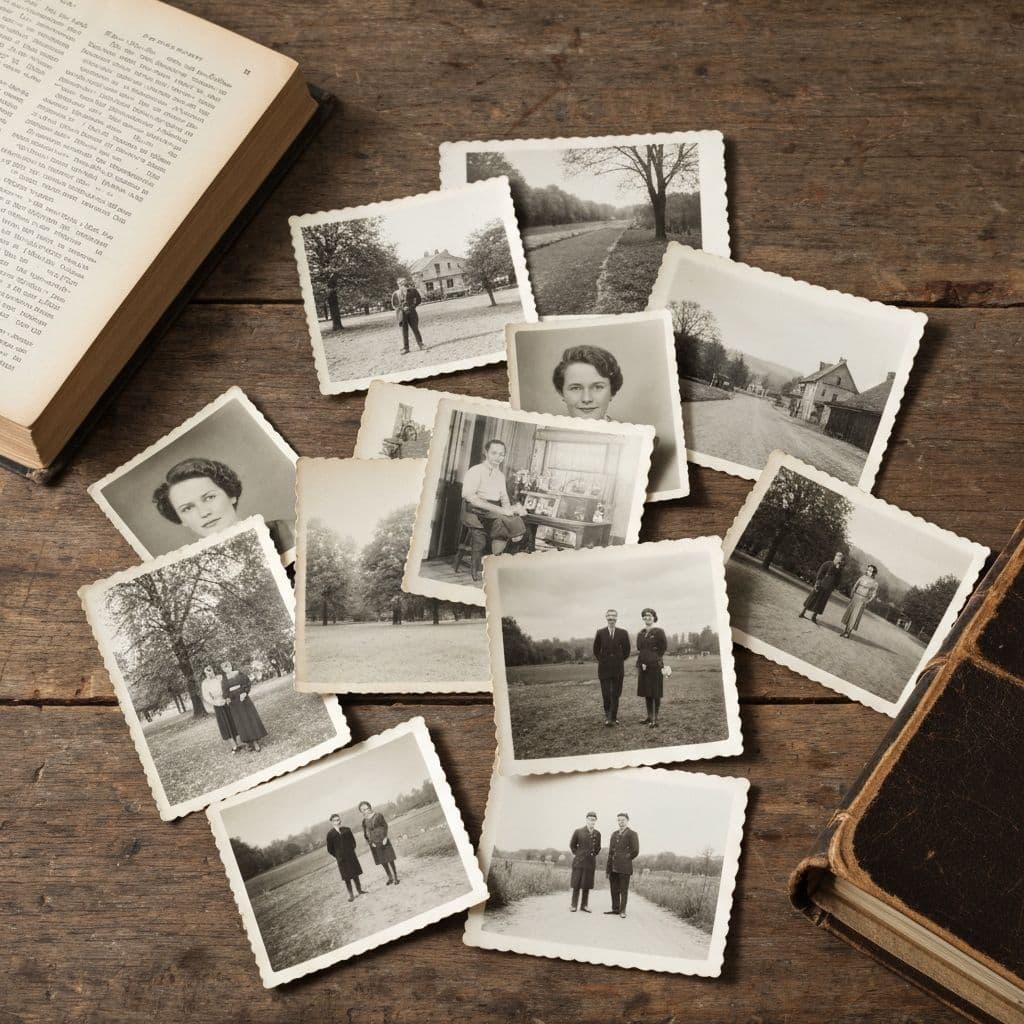
Your iPhone Is a Better Photo Scanner Than You Think
Most people assume you need a flatbed scanner to digitize a family photo collection. You don't. A modern iPhone (12 or newer) produces digital captures that exceed the resolution of most home scanners, and with the right technique, the results are genuinely print-quality.
This guide covers the capture workflow, how to fix the most common mistakes, and how to restore damaged prints once digitized using Restory.
What You'll Need
- An iPhone (any model from iPhone 11 onwards works; newer is better)
- Indirect daylight or a well-lit room
- A flat, matte, dark surface (black cardstock is ideal)
- Optional: a small tripod or phone stand for stability
- Optional: clean cotton gloves if handling fragile prints
That's the whole kit. Total cost: zero if you already own the iPhone.
Step 1: Choose Your Lighting
Lighting is 80% of the capture quality. Follow these rules:
Use indirect daylight
Near a window, but not in direct sunlight. Direct sun creates harsh reflections and uneven exposure. Overcast daylight is ideal — it's soft, even, and color-neutral.
Never use flash
Flash creates glare on glossy prints and flattens texture. Turn it off in the iPhone camera app.
Avoid mixed lighting
Turn off any tungsten or fluorescent bulbs nearby — they create color casts that fight the natural daylight.
If you can't get good daylight, a white LED ring light with color temperature around 5500K is the best artificial substitute.
Step 2: Prepare the Photo
Place the print on the dark matte surface. The dark background helps the iPhone's auto-exposure lock onto the photo's tonal range rather than a bright tabletop.
If the photo is:
- Curled — press flat under a book for 30 minutes first
- Dusty — blow gently with a soft bulb blower (never wipe)
- Stuck to glass — do not force; submerge in cold distilled water for 20 minutes to release
Step 3: Capture the Image
Hold the phone parallel to the print
Directly above, not at an angle. Any tilt causes perspective distortion that's hard to fix later. A small tripod helps, but hands work fine for a single shot.
Fill the frame but leave margin
The photo should occupy about 80-90% of the frame. Leaving margin gives Restory room to correct edges.
Use the native camera app
Skip third-party scanning apps for old prints — they auto-enhance in ways that destroy detail. The native Camera app captures raw data that AI restoration can work with.
Tap to focus on the photo's center
This locks exposure and focus on the print rather than the surrounding background.
Enable HDR
On by default for most iPhones. HDR recovers detail in faded highlights and shadows simultaneously — critical for old prints with uneven tonal range.
Step 4: Check Quality Before Moving On
After each capture, zoom in:
- Is the text/face sharp at 100% zoom? If blurry, retake with steadier hands or a tripod
- Are there any reflections? Change your position until they disappear
- Is the photo evenly lit? Shadow on one side means your light source is at an angle — move it
It's worth spending 30 seconds per photo to get this right. A rushed capture means worse AI restoration results later.
Step 5: Restore Damaged Prints
Once captured, most old photos have some damage: scratches, fading, yellowing, blur. Open Restory and apply features based on what you see:
| Damage | Feature | Cost |
|---|---|---|
| Scratches, stains, tears | Remove Scratches | 5 coins |
| Blurry faces | Restore Faces | 5 coins |
| Low resolution / small print | Enhance Details | 4 coins |
| Black and white | Colorize | 4 coins |
| Missing corners | Recreate | 6 coins |
| Add subtle motion | Bring to Life | 10-15 coins |
For a typical family photo with mild damage, 9-14 coins (about EUR 1-2) is enough.
Batch-Scanning an Entire Album
If you have a box of 100+ prints, here's an efficient workflow:
- Sort first, capture second. Group by format (standard, polaroid, large print) and condition (good, damaged, severely damaged). Capture each group together to minimize setup changes.
- Use consistent lighting. Set up once and don't move. Consistency across the batch means editing is easier later.
- Name files as you go. Use iOS Shortcuts or rename after import using date + location (e.g.,
1962-summer-vacation-01.heic). - Process in sessions. Restoring 20-30 photos per evening is sustainable. More than that and you'll cut corners on quality.
- Back up immediately. Photos captured today go to iCloud + an external drive tonight, not "next week."
Expect to capture roughly 100 prints per hour with good technique. Restoration in Restory takes another 1-2 minutes per photo. A 500-photo archive is a weekend project, not a months-long undertaking.
Why iPhone Beats Most Home Scanners
Modern iPhone cameras capture at 12-48 megapixels with excellent low-light performance, computational HDR, and color science trained on billions of images. A EUR 80 flatbed scanner captures at 600-1200 DPI but with older sensor technology and narrower dynamic range.
For photos smaller than A4 (most family snapshots), the iPhone typically produces sharper, more color-accurate captures than a cheap scanner. Expensive professional scanners (Epson V850, dedicated film scanners) still win on absolute quality, but those cost EUR 800+ and are overkill for a family archive.
For a broader look at restoration tools once you've digitized, see our Restory vs Remini comparison or the free photo restoration apps guide.
Related Guides
- The ultimate guide to photo restoration
- How to restore water-damaged photos
- Scanning old photos: tips and tricks
Frequently Asked Questions
Do I need a special scanning app on my iPhone?
No. The native iOS Camera app with HDR enabled produces better results than most third-party scanning apps for old prints. Apps like Google PhotoScan or Microsoft Lens auto-enhance in ways that destroy tonal detail useful for AI restoration. Capture raw data in the native app, then let Restory do the restoration — that workflow produces dramatically better results than relying on a scanning app's built-in enhancement.
What resolution should I aim for when digitizing old photos?
An iPhone capture at maximum quality (HEIC or JPEG, full resolution) produces around 4000x3000 pixels, equivalent to a scanner running at about 400 DPI for a 4x6 print. That's more than enough for print-quality restoration up to 8x12 inches. If you plan to print larger than 8x12, use a tripod for maximum sharpness or upscale later with Restory's Enhance feature (4 coins). For standard family album use, standard iPhone resolution is perfect.
Is it better to scan photos or capture with iPhone?
For prints smaller than A4, modern iPhones (12 and newer) typically outperform sub-EUR 150 flatbed scanners in color accuracy and dynamic range, and they're dramatically faster. Professional scanners above EUR 500 still produce higher absolute quality, particularly for oversized prints, negatives, and slides. For 99% of family archive projects, an iPhone is not just adequate — it's the better tool.
Do it yourself with Restory
Advanced AI on your iPhone. 6 restoration tools. Free download.
Download on App StoreMore How-To Guides
How to Restore Photos of Historical Places That No Longer Exist
Family photos sometimes capture places that have changed or disappeared. A guide to restoring these visual time capsules.
How to Restore an Individual Student Photo (School Portrait)
School portraits document every year of childhood. A guide to restoring individual student photos from every era.
How to Restore Flood-Damaged Photos (Emergency Guide)
A flood can destroy decades of family photos in hours. Here's what to do in the first 24 hours and how AI can save damaged photos afterward.