
How to Restore a Polaroid Photo (Complete Guide)
Polaroids age fast. A step-by-step guide to reviving faded, stained, and color-shifted instant photos using AI.
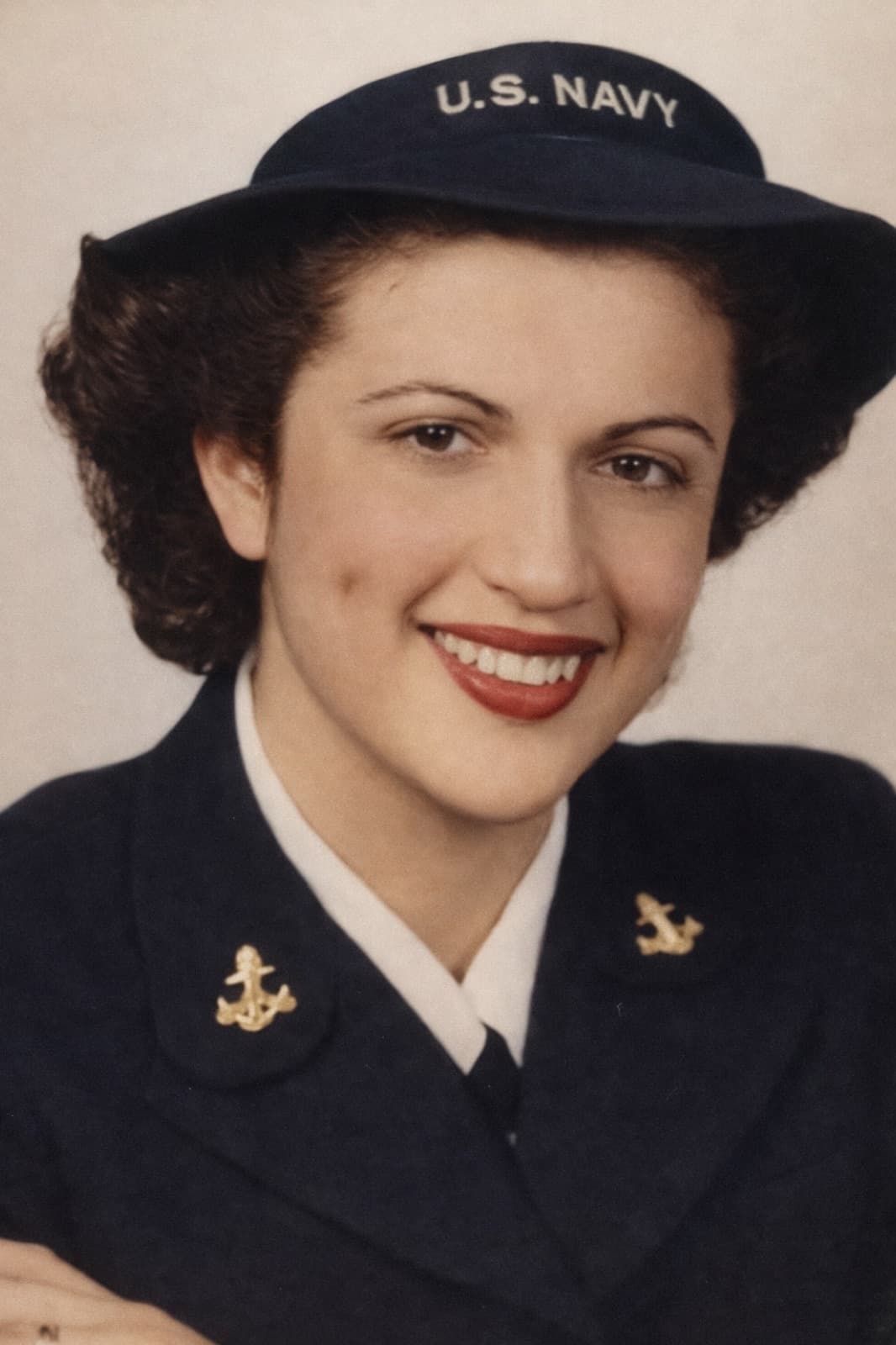
Why Polaroids Age Worse Than Regular Photos
Polaroid instant photos have a unique deterioration pattern because the chemistry developed inside a sealed pack, without the controlled environments of darkroom-developed prints. The result:
- Colors shift dramatically over time — reds become magenta, blues become cyan, whites become yellow
- Emulsion damage appears as streaks, bands, or discolored patches
- Fading is often uneven — one side of the photo may be completely faded while the other looks fine
- White borders yellow or brown significantly
The good news: modern AI is very good at correcting these specific patterns because the chemistry is well-understood and the damage is systematic rather than random.
Step 1: Capture the Polaroid Correctly
Polaroids have unique capture challenges because the surface is slightly textured and reflective.
Setup
- Place the polaroid on a flat, matte, dark surface (black cardstock works)
- Use indirect daylight near a window (no direct sun — it creates reflections)
- Disable flash on your iPhone
- Hold the phone directly above, parallel to the surface
Framing
- Include the white border in the capture (don't crop it out yet — the border helps the AI reference white balance)
- Fill about 80% of the frame with the polaroid
- Shoot at maximum resolution
Lighting
If you see reflections on the polaroid surface, rotate either the photo or yourself 45 degrees until they disappear. Polaroid emulsion has directional reflectivity that's fixable just by changing angle.
Step 2: Upload to Restory
Open Restory on your iPhone and import the captured image.
Step 3: Apply the Right Sequence
Polaroids respond best to a specific feature order because their damage is layered: color shift first, then detail loss, then any physical damage.
1. Enhance Details (4 coins)
Run this first. It neutralizes overall color casts (the magenta or cyan shift common in old polaroids) while preserving true colors. This single pass typically recovers 60-70% of the aged polaroid's appearance.
2. Restore Faces (5 coins) — if applicable
If the polaroid is a portrait, run face restoration next. The Polaroid emulsion's softness often blurs facial features; the dedicated face model reconstructs them.
3. Remove Scratches (5 coins) — if damaged
For polaroids with scratches, streaks, or emulsion damage, run scratch removal. It treats polaroid-specific streaks as linear damage patterns and fills them with surrounding texture.
4. Colorize (4 coins) — for severe color loss
If the polaroid has faded so severely that it's essentially monochrome or sepia, Colorize can rebuild natural colors. Use only when Enhance Details alone didn't recover color — otherwise you'll overwrite useful color information.
Total coin cost: typically 9-14 coins per polaroid, about EUR 1.12-1.75 with the 200-coin pack at EUR 24.99.
Step 4: Iterate if Needed
After AI processing:
- Colors still too cyan/magenta — re-run Enhance Details; the stochastic AI produces slightly different color corrections each pass
- Face looks artificial — skip Restore Faces on the next attempt
- White border still yellow — that's usually fine, the border signals authenticity; if you want pure white, crop it out
Polaroid-Specific Problems
The "crystallized" look
Some severely aged polaroids develop a crystallized or granular appearance from chemical degradation. Run Enhance Details twice in succession — once is sometimes not enough for this damage type.
Uneven fading
When one side of a polaroid has faded much more than the other, the AI may over-correct one side and under-correct the other. Solution: capture only the worse half first, restore it, then capture the better half separately and restore it. Combine the two restored halves if needed.
Color banding
Faint color bands (slight stripes of different color across the polaroid) come from uneven development when the photo was originally taken. The AI can smooth these if they're moderate; if they're severe, the photo may retain visible banding even after restoration.
How Restory Compares on Polaroids Specifically
Polaroids are a specific case where general AI photo enhancers (like Remini) often produce poor results because they're trained primarily on modern digital photos. Polaroid-specific damage patterns aren't in their training distribution at the same frequency.
Restory's training data intentionally includes vintage prints and instant photography, so polaroid restoration is one of the use cases where the app particularly outperforms general alternatives. Our Restory vs Remini comparison covers broader feature differences.
What to Do with the Restored Polaroid
Print as modern photo
A restored polaroid prints beautifully at standard photo sizes (4x6, 5x7, 8x10). Many users frame these as a paired set with the original Polaroid.
Create a Polaroid-style digital album
Keep the white-border aesthetic when sharing digitally. Use a photo editor (Instagram, Canva) to add a modern Polaroid frame effect to the restored image.
Backup the original
Store the physical polaroid in an archival sleeve flat (never stack), in a cool dry location. Polaroid degradation accelerates with heat and humidity.
Related Guides
- How to digitize old photos with your iPhone
- The ultimate guide to photo restoration
- How to restore water-damaged photos
Frequently Asked Questions
Can AI really restore a Polaroid that's decades old?
Yes, in most cases. Polaroid chemistry ages in predictable ways — color shifts, emulsion streaks, border yellowing — all of which have been trained into modern AI restoration models. The exception is polaroids where the emulsion has physically separated from the backing (a rare but irreversible damage type). For the common pattern of "Polaroid from 1985, very faded, orange cast" the restoration result is often dramatic.
Should I peel the Polaroid film off the backing to scan?
No. Never attempt to separate the Polaroid emulsion from its backing. The chemistry is sealed by design and damage from separation is permanent. Capture the polaroid as-is using your iPhone or a flatbed scanner. Digital restoration doesn't require direct access to the emulsion layer.
Will restoration preserve the Polaroid aesthetic?
The restored version will look more like a modern photo than the original polaroid aesthetic. If you want to keep the polaroid look, don't restore aggressively — use only Enhance Details (not Colorize), and keep the white borders. For a pure modern restoration, crop the borders and apply all features. Many users save both versions so they can choose based on use case (restored for gifts and printing, original for nostalgia).
Do it yourself with Restory
Advanced AI on your iPhone. 6 restoration tools. Free download.
Download on App StoreMore How-To Guides
How to Restore Photos of Historical Places That No Longer Exist
Family photos sometimes capture places that have changed or disappeared. A guide to restoring these visual time capsules.
How to Restore an Individual Student Photo (School Portrait)
School portraits document every year of childhood. A guide to restoring individual student photos from every era.
How to Restore Flood-Damaged Photos (Emergency Guide)
A flood can destroy decades of family photos in hours. Here's what to do in the first 24 hours and how AI can save damaged photos afterward.