How to Scan Old Photos: Tips for the Best Quality
Get the best quality when scanning old photos. Expert tips on resolution, lighting, equipment, and preparing photos for AI restoration.
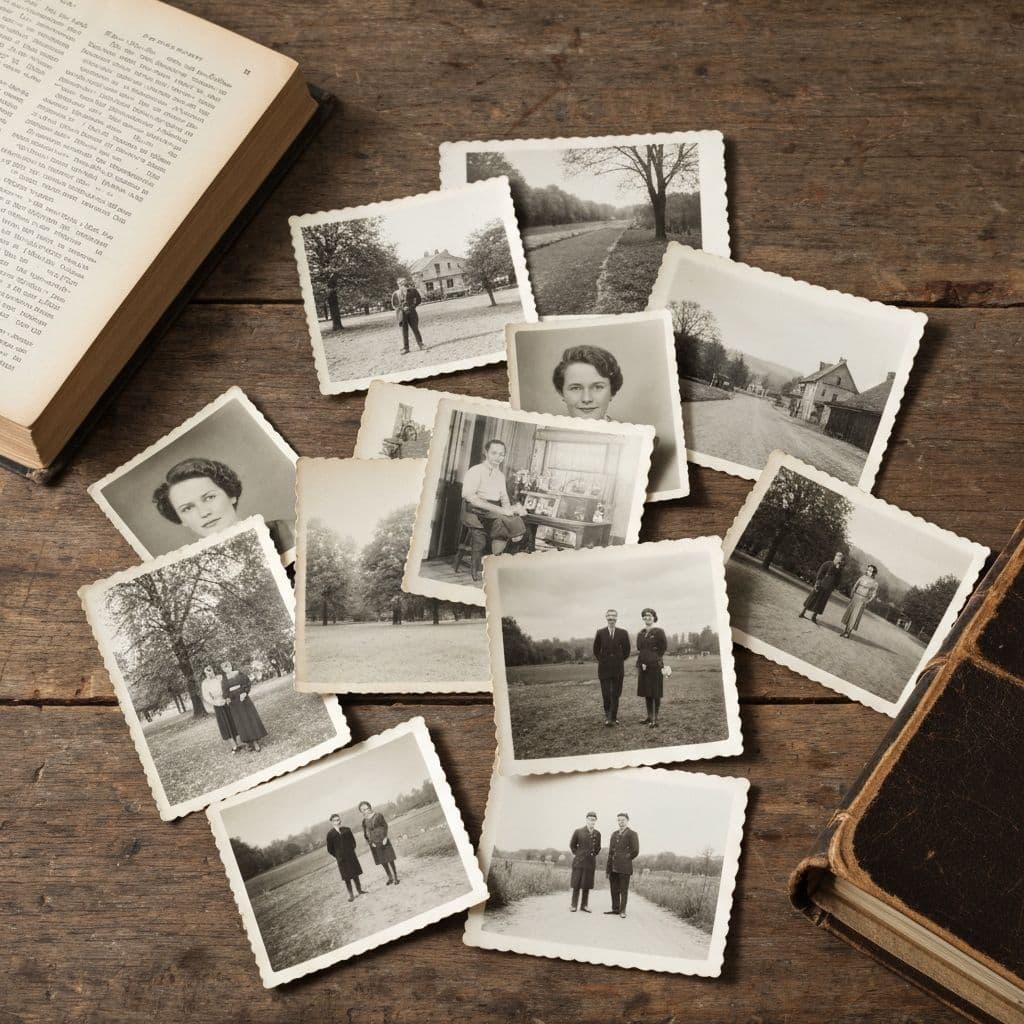
The First Step in Saving Your Memories
Every digital photo restoration journey begins with the same step: turning a physical print into a digital file. It sounds simple. Point a camera at a photo, press a button, done. But the truth is that how you scan or photograph your old prints has an enormous impact on the quality of everything that comes after. A poor scan limits what even the most advanced AI can achieve. A great scan gives restoration tools the data they need to work miracles.
This guide shares the practical techniques that produce the best results when digitizing old photographs. Whether you are using a flatbed scanner, a smartphone camera, or a dedicated scanning app, these tips will help you capture the highest quality digital copies possible, ready for restoration, sharing, and preservation.
If you are planning to restore your photos after scanning, our ultimate guide to photo restoration walks through the complete process from scan to finished result.
Flatbed Scanner vs. Smartphone: Which Is Better?
The two most accessible options for digitizing photos at home are flatbed scanners and smartphone cameras. Both can produce excellent results, but they excel in different situations.
Flatbed Scanners
Best for: High-resolution archival scans, consistent quality, large batches
A flatbed scanner produces the highest quality digital copies. The controlled lighting, fixed distance, and optical system eliminate the variables that make phone photography inconsistent. For archival purposes or when you need the absolute best starting point for AI restoration, a flatbed scanner is the superior choice.
Advantages:
- Consistent, even illumination with no shadows or hot spots
- Exact resolution control (300, 600, 1200 DPI or higher)
- No perspective distortion
- Repeatable results across hundreds of photos
- Captures fine detail that phone cameras may miss
Disadvantages:
- Requires a scanner (entry-level models cost $60-$100)
- Slower than photographing with a phone
- Photos must be flat, which can be challenging with curled or warped prints
Smartphone Cameras
Best for: Quick digitization, photos in albums or frames, when a scanner is unavailable
Modern smartphone cameras, particularly flagship models from 2024 onward, capture enough resolution and detail for effective AI restoration. The main challenge is controlling lighting and alignment.
Advantages:
- You already have one
- Fast: photograph dozens of photos in minutes
- Can capture photos still in frames, albums, or mounted displays
- Scanner apps add cropping, perspective correction, and edge detection
Disadvantages:
- Lighting is harder to control
- Perspective distortion requires correction
- Reflections and glare on glossy prints
- Inconsistent results between shots
For most people, a smartphone is perfectly adequate. The quality difference between a phone scan and a flatbed scan only becomes significant for very detailed, large-format prints or when you need archival-grade resolution.
Resolution: How Much Do You Need?
Resolution determines how much detail your digital copy captures. For photo restoration, more resolution is almost always better because it gives the AI more data to work with.
Recommended Resolution Settings
| Purpose | Minimum DPI | Recommended DPI |
|---|---|---|
| Screen viewing and sharing | 300 DPI | 300 DPI |
| AI restoration | 300 DPI | 600 DPI |
| Archival preservation | 600 DPI | 1200 DPI |
| Reprinting at larger size | 600 DPI | 1200+ DPI |
For AI restoration, 600 DPI is the sweet spot. It captures enough detail for the AI to detect and repair damage accurately without creating unnecessarily huge files. At 600 DPI, a standard 4x6 inch print produces a file approximately 2400x3600 pixels, which is more than enough for any restoration tool.
What About Phone Camera Resolution?
Modern phones capture 12 to 200 megapixels. When you photograph a 4x6 print, the effective resolution depends on how much of the frame the photo fills. If a 12-megapixel camera captures a 4x6 print filling the entire frame, you get approximately 4000x3000 pixels, which is comparable to a 600+ DPI scan. The key is to fill the frame with the photo and minimize wasted space.
Lighting: The Most Important Variable
Lighting is where most people make mistakes that degrade their scans. Uneven, harsh, or poorly positioned lighting creates problems that no amount of post-processing can fully fix.
For Flatbed Scanners
The good news is that flatbed scanners handle lighting automatically. The built-in light bar provides even, consistent illumination. The only lighting tip for scanners is to keep the scanner lid closed during scanning to block ambient light that can cause color casts.
For Smartphone Photography
This is where you need to be careful. Follow these rules:
Use indirect natural light. The best light source for photographing old prints is a large window on an overcast day. The diffused light is even and shadow-free. Direct sunlight creates harsh shadows and specular reflections, especially on glossy prints.
Avoid overhead room lights. Ceiling fixtures create uneven illumination and can cause visible reflections on the photo surface. If you must use artificial light, position two lamps at equal distances on opposite sides of the photo, angled at roughly 45 degrees. This minimizes shadows and distributes light evenly.
Watch for glare on glossy prints. Glossy photo finishes are mirrors. If you can see the reflection of your phone or your face in the photo, the camera can too. Angle your shooting position slightly (no more than 5 degrees from perpendicular) to redirect reflections away from the camera. Some people hold a piece of black paper with a hole cut for the camera lens to eliminate reflections entirely.
Check for even exposure. After photographing, zoom in on different corners of the image. If one side is noticeably brighter or darker than the other, adjust your lighting or position and reshoot.
Preparing Photos for Scanning
A few minutes of preparation before scanning can significantly improve your results.
Cleaning the Photo
- Use a soft, lint-free cloth or a gentle blast of compressed air to remove dust and loose particles
- Do not use water or cleaning solutions on the photo surface unless you know the emulsion type and appropriate cleaning method
- Handle photos by the edges to avoid transferring oils from your fingers onto the image surface
- Wear clean cotton gloves if you are handling many photos, especially valuable ones
Flattening Curled Prints
Old photos often curl due to humidity changes over decades. Curled photos do not scan well because parts of the image are out of the scanner's focal plane.
- Place curled photos under a heavy book for several hours before scanning
- Do not use excessive weight on fragile or brittle prints
- For severely curled photos, a short exposure to gentle humidity (place near a steaming kettle for a few minutes, not directly over it) can relax the paper fibers enough to flatten under weight
Removing Photos from Albums
If photos are in adhesive-style albums (the kind with sticky pages and plastic covers from the 1970s-80s), removal can be risky. The adhesive may have bonded to the photo backing.
- Try dental floss or a thin, flexible blade slid carefully behind the photo
- Work slowly from one corner
- If the photo resists, stop. Photograph it in the album rather than risk tearing it
- For valuable photos, consult a professional conservator
Scanner Settings That Matter
If you are using a flatbed scanner, these settings produce the best results for photo restoration.
Color Mode
Always scan in color, even for black-and-white photos. Color mode captures subtle tonal variations and any color shifts from aging (yellowing, browning) that the AI can use to distinguish image content from age-related degradation. You can always convert to grayscale later, but you cannot add color data back to a grayscale scan.
File Format
- TIFF is the gold standard for archival scanning. Lossless compression preserves every detail. Files are large (30-100 MB per photo at 600 DPI) but worth it for important images.
- PNG is a good alternative. Also lossless, with slightly smaller files than uncompressed TIFF.
- JPEG is acceptable for large batches when storage space is a concern. Use quality 95 or higher to minimize compression artifacts. Avoid JPEG quality below 90 for photos you plan to restore.
Post-Processing in Scanner Software
Most scanner software offers automatic adjustments like color correction, sharpening, and dust removal. For photos you plan to restore with AI, turn all automatic adjustments off. Scan the photo as-is. Let the AI restoration tools handle corrections. Scanner software adjustments can mask damage in ways that confuse the restoration AI or introduce artifacts that complicate the process.
Organizing Your Scanned Photos
Once you start scanning, organization quickly becomes important. A structured approach saves hours later.
File Naming
Use a consistent naming convention. A format like YYYY_description_sequence.tiff works well:
1952_grandparents_wedding_001.tiff1967_family_reunion_001.tiffunknown_portrait_woman_001.tiff
Folder Structure
Organize by decade or family branch:
/family_photos/1940s//family_photos/1950s//family_photos/unknown_date/
Metadata
If you know dates, names, or locations, record them in a simple spreadsheet alongside the file name. This metadata becomes invaluable when you or future generations want to identify people in the photos.
For a comprehensive approach to organizing and maintaining your family photo collection, read our guide on preserving family archives.
From Scan to Restoration
A good scan is the foundation, but the real transformation happens during restoration. Once your photos are digitized, AI-powered tools can remove decades of damage, restore blurry faces, and even add color to black-and-white images.
Restory is designed to work with the kinds of scans described in this guide. Its six AI features, including Remove Scratches, Restore Faces, Enhance, Colorize, Recreate, and Bring Photos to Life, are optimized for scanned vintage photographs. The coin-based pricing means you can restore each photo for a fraction of what professional restoration services charge.
If you are curious about what AI can do with a good scan, our article on amazing photo restoration before and after examples shows real transformations that demonstrate the dramatic difference between a raw scan and a fully restored image.
Start Scanning Today
Every day you wait, your physical photos degrade a little more. Fading continues. Paper becomes more brittle. Colors shift further from their original state. But the moment you scan a photo, you freeze it in time digitally. The physical print may continue to age, but your digital copy will remain exactly as captured, ready for restoration whenever you choose.
You do not need expensive equipment. A smartphone with good lighting and a steady hand will produce scans that are more than adequate for modern AI restoration. Set aside an afternoon, gather your family photos, and start scanning. Your future self, and your family's future generations, will be grateful you did.
<!-- cross-links -->Related Reading
Compare in depth:
Other alternatives:
Try Restory after scanning to see how much life AI can bring back to your digitized memories. The results might surprise you.
Restore your photos with Restory
AI to colorize, repair, and animate old photos. 32 languages, free trial.
Try Restory