Organizing Your Digital Family Archive
Don't let your restored photos get lost again. Best practices for digital storage, metadata, and sharing.
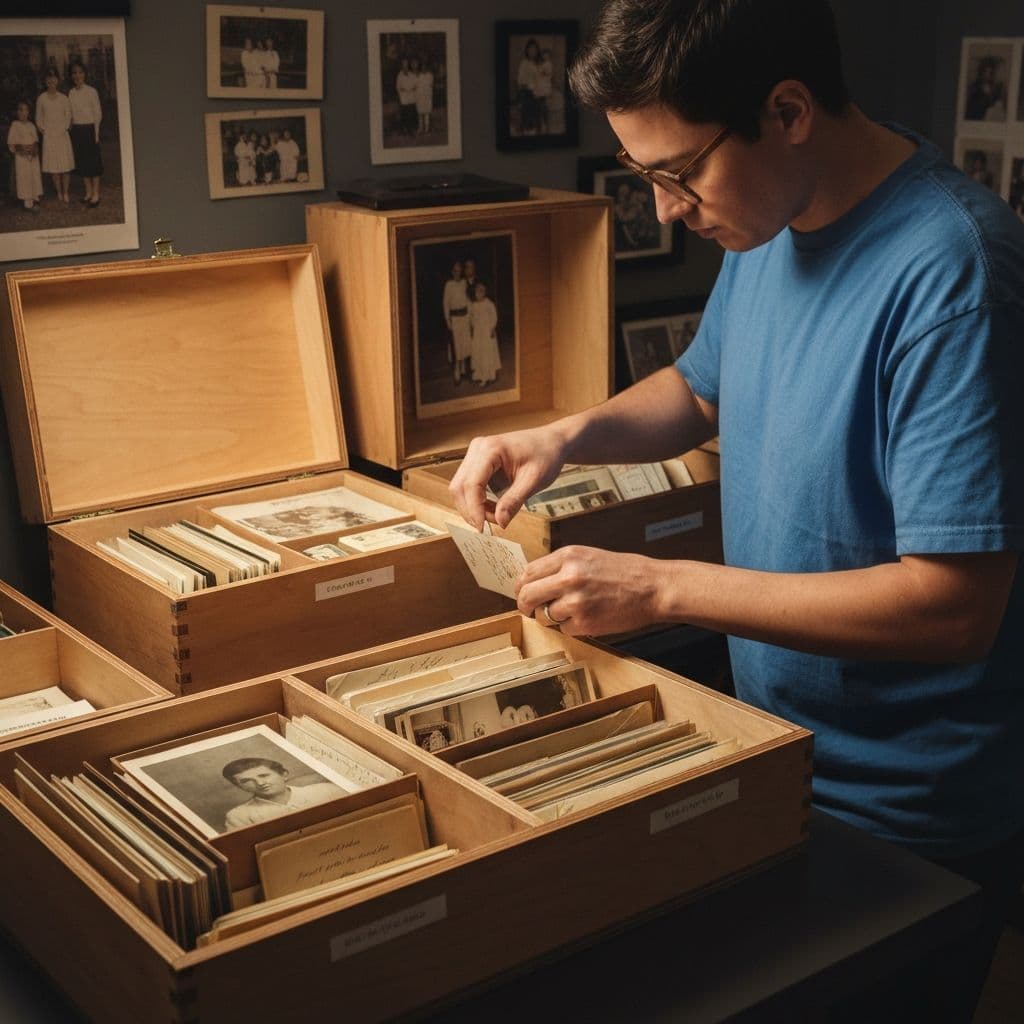
Digital Preservation 101
You have done the hard work. You scanned your old photos, restored the damage, maybe even colorized the black and white ones. Now comes the question most people overlook: how do you store and organize these files so they last another hundred years?
Physical photos survived decades in shoeboxes. Digital files, paradoxically, can be more fragile. Hard drives fail. Cloud services shut down. File formats become obsolete. Without a deliberate preservation strategy, your restored treasures could vanish far faster than the originals ever would.
Preservation is not a one-time project. It is a set of small habits that, repeated over years, keep your archive findable, readable, and safe across generations. The goal of this guide is to give you a practical system you can set up in a single weekend and maintain with minimal effort forever after.
The 3-2-1 Backup Rule
The foundation of digital preservation is the 3-2-1 rule:
- 3 copies of every file
- 2 different storage media (e.g., SSD and cloud)
- 1 offsite copy (cloud storage or a drive at a relative's house)
This sounds excessive until you lose a hard drive. And everyone loses a hard drive eventually.
Recommended Storage Setup
| Copy | Location | Purpose |
|---|---|---|
| Primary | Your computer or phone | Daily access and sharing |
| Backup 1 | External SSD or NAS | Local backup in case of device failure |
| Backup 2 | Cloud storage (iCloud, Google Photos, etc.) | Offsite backup, disaster recovery |
For family archives specifically, consider sharing one copy with a trusted family member. This creates a natural offsite backup while ensuring the collection survives even if something happens to your storage.
Naming Your Files
Good file naming is the simplest and most effective organizational tool. A consistent naming convention makes files findable without any special software.
Recommended Format
YYYY-MM-DD_LastName_Description.extension
Examples
1945-06-15_Rodriguez_WeddingPortrait.jpg
1962-08-XX_Chen_FamilyReunion.png
1978-00-00_Jenkins_BabyPhoto.jpg
Use XX or 00 for unknown months or days. This keeps chronological sorting intact while acknowledging gaps in your knowledge.
Adding Metadata
Beyond file names, photos can carry embedded metadata (EXIF/IPTC data) that survives file transfers and renames. Use a free tool like ExifTool or Adobe Bridge to add:
- Date taken — the original date, not the scan date
- Location — city, country, or address if known
- People — names of everyone in the photo
- Description — context about the event or occasion
- Source — who provided the original, where the physical copy is stored
This metadata travels with the file. Even if someone renames it, the information persists inside the image file itself.
Folder Structure
Keep your folder structure simple and intuitive. Over-complicated hierarchies become confusing and lead to misfiled photos.
Suggested Structure
Family Archive/
  Originals/           (unedited scans)
  Restored/            (AI-restored versions)
    By Year/
      1940s/
      1950s/
      ...
    By Person/
      Grandma Rosa/
      Uncle Miguel/
  Projects/            (gifts, collages, albums)
The key principle: separate originals from restored versions. Never overwrite an original scan with a restored version. You may want to re-restore with better technology in the future.
Choosing File Formats
Not all image formats are equal for archival purposes:
- TIFF — best for archival. Lossless, widely supported, but large files
- PNG — good lossless alternative, smaller than TIFF, universally viewable
- JPEG — fine for sharing and display, but each save slightly degrades quality
- HEIC/HEIF — efficient but not universally supported yet. Avoid for archival
For your master archive, save in PNG or TIFF. Create JPEG versions for sharing on social media or messaging apps.
Sharing With Family
The whole point of a family archive is to be shared. Consider these approaches:
Shared Cloud Album
Create a shared album on iCloud, Google Photos, or Amazon Photos. Invite family members to view and contribute. This is the easiest option for non-technical family members.
Family Website or Blog
For larger collections, a simple website (even a free Google Sites page) can serve as a family archive. Add context, stories, and dates alongside the photos.
Printed Photo Books
There is something irreplaceable about a physical photo book. Services like Shutterfly, Blurb, or Apple Photos can create beautiful printed albums from your restored digital files. Consider making copies for multiple family members — they make incredible gifts.
Annual Family Archive Update
Make it a tradition. Once a year (perhaps around a holiday), gather new photos, scan any recently discovered prints, and update the shared archive. This turns preservation into a family activity rather than a solo chore.
A Realistic Restoration and Archiving Budget
A well-maintained family archive is surprisingly affordable if you plan it out. Here is what a typical first year looks like for a family starting from scratch:
- Scanner or scanning app: EUR 0-150 depending on whether you already own a flatbed scanner, use a smartphone, or buy a portable device.
- Restory annual plan: EUR 39.99/year, which includes 200 coins on each renewal, enough to restore roughly 20-40 photos depending on the features used. There is also a 3-day free trial with 15 trial coins to test the app before committing.
- Extra coin packs if needed: 50 coins for EUR 7.99, 200 for EUR 24.99, or 500 for EUR 44.99 (the 500-coin pack is the best value at 44% savings).
- External SSD: EUR 60-100 for a 1TB drive with enough space for thousands of high-resolution scans.
- Cloud storage: typically EUR 0-30/year if you already pay for iCloud, Google One, or similar.
- Printed photo book for sharing: EUR 30-60 depending on size and page count.
For most families, the entire first-year investment lands around EUR 150-250 — genuinely trivial compared to what a professional photo restoration service would charge for a single damaged image. Restory's six AI features (Colorize, Enhance, Restore Faces, Remove Scratches, Recreate, and Bring Photos to Life) replace what used to require hiring a specialist. If you are weighing options before committing to a tool, our roundup of Remini alternatives covers the main contenders and why coin-based pricing beats weekly subscriptions for archive projects.
Interviewing Older Relatives: The Hidden Preservation Task
The most overlooked part of building a family archive is not the files. It is the knowledge locked inside your older relatives' memories. The people who can identify faces and places in photos from the 1940s, 1950s, and 1960s are often in their 80s or 90s. Once they pass, that information is usually gone forever.
Before you start scanning, spend an afternoon with the oldest living member of your family. Bring a box of photos and a notebook (or record the audio on your phone). Go through each image and ask:
- Who is in this photo?
- Approximately when was it taken?
- Where was it taken?
- What was happening that day?
- Is there anything unusual or memorable about it?
Even rough answers are valuable. "Somewhere in Cincinnati in the late 1950s" is infinitely better than "unknown." Record these interviews while you still can. Many Restory users report that this conversation becomes the most meaningful part of the entire project — and makes the later restoration work feel purposeful rather than mechanical. Once you have the context, consider creating small restored prints as thoughtful family gifts for the relatives who shared their memories.
Common Pitfalls
- Relying on a single storage service. If Google shuts down Photos, do you have a backup?
- Not labeling photos. "IMG_4382.jpg" means nothing in ten years. Rename everything.
- Waiting too long. The people who can identify faces and places in old photos are getting older. Record their knowledge now.
- Perfectionism. Don't wait until you have the perfect system. Start with what you have. Organize as you go.
Start Today
Your family photos are not just images — they are the visual DNA of your family. Every face, every place, every moment captured in those photos deserves to survive for the next generation.
Start small: pick ten photos, restore them with Restory, name them properly, back them up in two places, and share them with someone who will care. That is the beginning of a family archive that will last.
Frequently Asked Questions
How long should a family photo archive be expected to last?
A properly maintained digital archive following the 3-2-1 backup rule can reliably survive for fifty to a hundred years or more, as long as you migrate the files to new storage media every ten to fifteen years. Hard drives and SSDs do not last forever — typically 5 to 10 years of active life, though files can deteriorate silently earlier. Cloud services last as long as the company does, which is why you never rely on a single provider. Treat preservation as an ongoing process, not a permanent solution, and the archive will outlive you.
How do I decide which photos to restore first?
Start with the photos that have the highest emotional value and the lowest chance of being re-scanned later. That usually means unique images held only by elderly relatives, photos of people who have passed, or images with severe physical damage getting worse each year. Restore those first because you cannot recover the originals if something happens to them. After the urgent cases, work chronologically from the oldest photos forward — older images tend to be more fragile and more irreplaceable than recent ones, and they often benefit the most from Restory's Colorize and Restore Faces features.
How do I back up a family archive if I am not technical?
The simplest non-technical setup uses three things most people already have: your phone, your computer, and a cloud service. Store the master archive on your computer, sync it automatically to iCloud or Google Drive, and periodically copy the folder to a cheap external drive that you keep at a relative's house. That is a complete 3-2-1 setup with no special software. Add calendar reminders every six months to verify the cloud sync is still working and that your external drive is still readable.
<!-- cross-links -->Related Reading
Compare in depth:
Other alternatives:
Restore your photos with Restory
AI to colorize, repair, and animate old photos. 32 languages, free trial.
Try Restory