
How to Scan Photos Without a Scanner (iPhone Method)
No scanner, no problem. A step-by-step guide to getting scanner-quality results from your iPhone camera for an entire family photo archive.
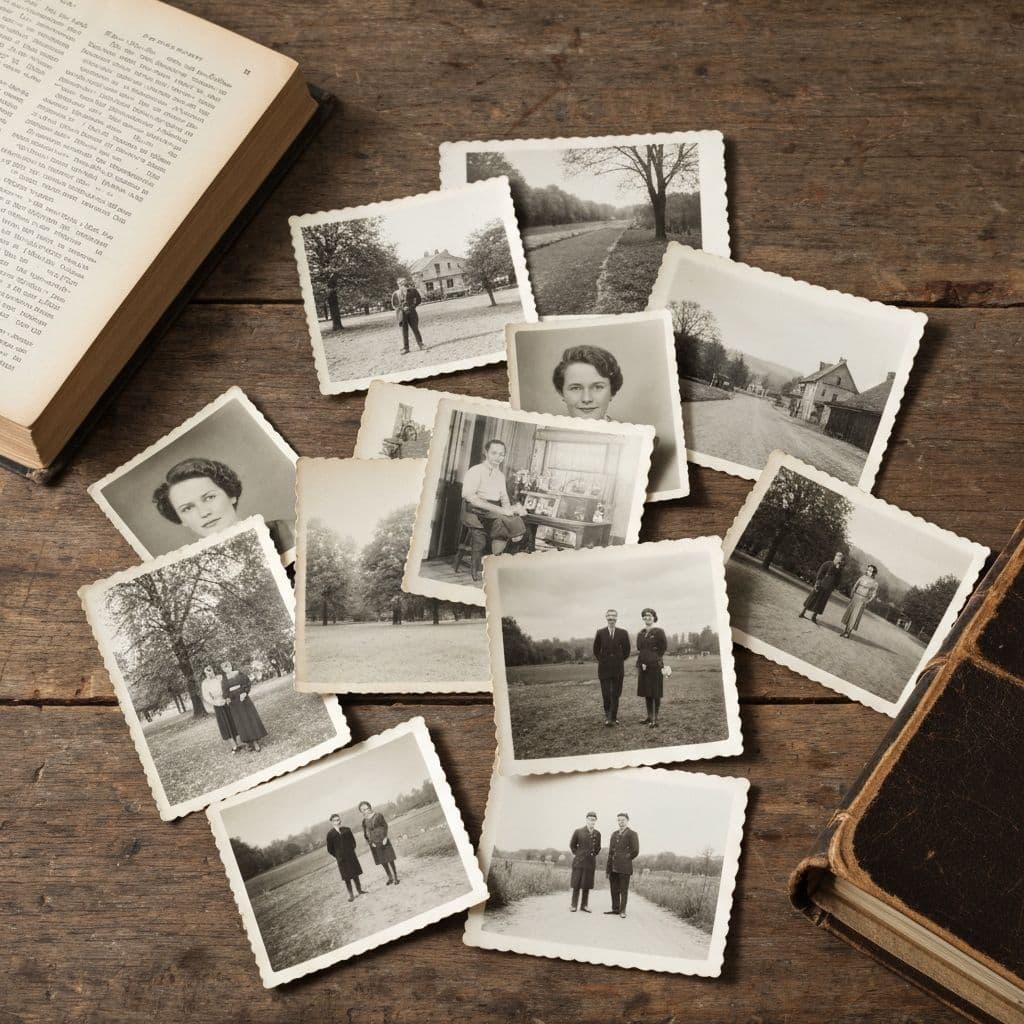
You Don't Need a Scanner
A common assumption in family archive projects is that you need a dedicated scanner. For photos smaller than A4, modern iPhone cameras produce captures that match or exceed scanners costing under EUR 200. This guide shows the exact technique that matches scanner-quality results using just your phone.
Why iPhone Works as a Scanner
Modern iPhones (12 and later) capture at 12-48 megapixels with excellent computational photography, sophisticated white balance correction, and wide dynamic range. The practical result: a properly-captured iPhone photo of a 4x6 print is comparable to a flatbed scan at 400-600 DPI.
The limitations: iPhones can't scan slides or negatives directly (those need backlighting), can't handle odd sizes larger than A4 easily, and lack the consistency that scanner feed systems provide for hundreds of photos.
For 95% of family archive work, the iPhone method is enough.
Step 1: Prepare the Physical Photo
- Clean with a soft dry brush (not a cloth — avoid rubbing)
- Flatten if curled (press under a heavy book for 24 hours)
- Remove from any frames, albums, or sleeves temporarily
Step 2: Set Up the Capture Environment
The environment matters more than expensive equipment.
Lighting (the most important factor)
Ideal: indirect daylight from a window on an overcast day. Soft, even, color-neutral.
Acceptable: indirect daylight on a sunny day (not in the direct sun patch), or a LED ring light with 5500K color temperature.
Bad: direct sunlight (too harsh, creates reflections), tungsten bulbs (adds orange cast), fluorescent lights (adds green cast), mixed light sources (color casts fight each other).
Surface
Flat, matte, dark. Black cardstock is ideal (EUR 2 at any art supply store). Second choice: a dark non-textured tablecloth. Avoid wood grain (adds warm cast to white balance) and glossy surfaces (reflections).
Your phone position
Directly above the photo, parallel to the surface. Any tilt causes perspective distortion that's hard to fix later.
Step 3: Camera Setup
iPhone native camera app
Use it. Not third-party "scanner" apps — they auto-enhance in ways that destroy data you want preserved for AI restoration.
Settings
- Flash: off (always)
- HDR: on (recovers detail in faded highlights and shadows)
- Live Photos: off (not needed, wastes file size)
- Resolution: maximum
Tap to focus
Tap on the photo's center. This locks exposure and focus on the photo rather than the surrounding background.
Step 4: Capture Technique
Hold steady
Use two hands. Breathe out before tapping the shutter. If your hands are shaky, use a small tripod (EUR 15 at any photo store) or rest your arms on the table while holding the phone above.
Fill the frame
The photo should occupy 80-90% of the frame. Leaving some margin helps if you need to re-crop later.
Multiple captures of important photos
For any photo that matters, capture 2-3 times at slightly different angles. The best capture becomes your working file.
Review each capture at 100% zoom
Zoom in on a face or readable text in the photo. Is it sharp at 100% zoom? If yes, keep. If blurry, re-shoot with steadier hands or a tripod.
Step 5: Batch Workflow
For an entire family archive, pace matters.
100 photos per hour is sustainable
With good setup, one photo takes 30-60 seconds from placement to capture to review.
Consistent setup between captures
Don't move your light, your camera height, or your surface between captures within a session. This keeps color and exposure consistent, making batch editing later dramatically easier.
Sort first, shoot in batches
Group photos by size (4x6 vs odd sizes) and by condition (intact vs damaged). Shoot each group in one session with the same settings.
Name as you go
Use iOS Shortcuts or rename after import: YYYY-MM-event-NN.jpg format (see our family archive guide for naming conventions).
Step 6: Handle Edge Cases
Photos larger than A4
Capture in sections, then stitch in a photo editor. Or borrow a larger flatbed scanner at a library or print shop for oversized prints specifically.
Slides and negatives
These need backlighting. Options:
- Hold the slide against a bright window and capture
- Use a slide viewer app on your laptop as a backlight
- Dedicated phone slide scanner attachments (EUR 25-80)
- Drop them off at a photo scanning service for these specifically
Very glossy or reflective prints
Change your angle relative to the light source until reflections disappear. Sometimes rotating the photo 45 degrees solves it.
Old photos behind glass (in frames)
Remove from the frame if possible. Glass creates reflections and reduces sharpness. If the photo is permanently in the frame (antique glass, valuable frame), capture through the glass at a very slight angle to eliminate reflections.
Step 7: Import and Restore
Once captured, import to Restory for restoration if needed. Typical workflow:
- Remove Scratches (5 coins) for damaged photos
- Restore Faces (5 coins) for portraits
- Enhance Details (4 coins) for softness and color correction
- Colorize (4 coins) for B&W photos
Our ultimate guide to photo restoration covers the complete workflow.
iPhone vs Professional Scanner
| Criterion | iPhone | EUR 80 flatbed scanner | EUR 400 pro scanner |
|---|---|---|---|
| Resolution | 12-48 MP | 600-1200 DPI | 2400+ DPI |
| Color accuracy | Excellent | Good | Excellent |
| Speed | 100 photos/hour | 30-50 photos/hour | 20-30 photos/hour |
| Slides/negatives | No (needs accessory) | No | Yes |
| Cost | 0 (already owned) | EUR 80 | EUR 400+ |
| Consistency across batch | Good with care | Excellent | Excellent |
For 95% of family archive projects, iPhone is faster and good enough. Professional scanners still win for oversized prints, slides/negatives, and archival-quality reproduction.
Related Guides
- The ultimate guide to photo restoration
- How to digitize old photos (iPhone guide)
- How to start a family photo archive
Frequently Asked Questions
Is an iPhone really as good as a flatbed scanner?
For 4x6 prints and smaller, yes — modern iPhones match or exceed sub-EUR 200 flatbed scanners in color accuracy and sharpness, while being 2-3x faster to operate. For oversized prints, archival reproduction, or scanning slides/negatives, dedicated scanners still have advantages. For a typical family archive of standard-sized prints, iPhone captures are more than sufficient for restoration and printing.
What iPhone model do I need for good scanning results?
iPhone 11 and later produces acceptable results. iPhone 12 and later is noticeably better due to improved HDR and computational photography. iPhone 13 Pro and later with ProRAW gives you the most editing flexibility if you plan to do serious post-processing. For casual family archive work, any iPhone from 2019 or later is fine.
Should I use a scanning app like Microsoft Lens or Google PhotoScan?
No, for old photo archive work. These apps auto-enhance in ways that compress tonal range and destroy detail useful for AI restoration. Capture raw with the native iOS Camera app, then restore in a dedicated tool like Restory that knows how to handle old photo data. The two-step workflow produces dramatically better results than relying on a scanning app's built-in enhancement.
Do it yourself with Restory
Advanced AI on your iPhone. 6 restoration tools. Free download.
Download on App StoreMore How-To Guides
How to Restore Photos of Historical Places That No Longer Exist
Family photos sometimes capture places that have changed or disappeared. A guide to restoring these visual time capsules.
How to Restore an Individual Student Photo (School Portrait)
School portraits document every year of childhood. A guide to restoring individual student photos from every era.
How to Restore Flood-Damaged Photos (Emergency Guide)
A flood can destroy decades of family photos in hours. Here's what to do in the first 24 hours and how AI can save damaged photos afterward.