
How to Photograph Old Photos for Best Restoration Results
The quality of your restoration depends on the quality of your capture. A practical guide to photographing old photos so AI can actually work with them.
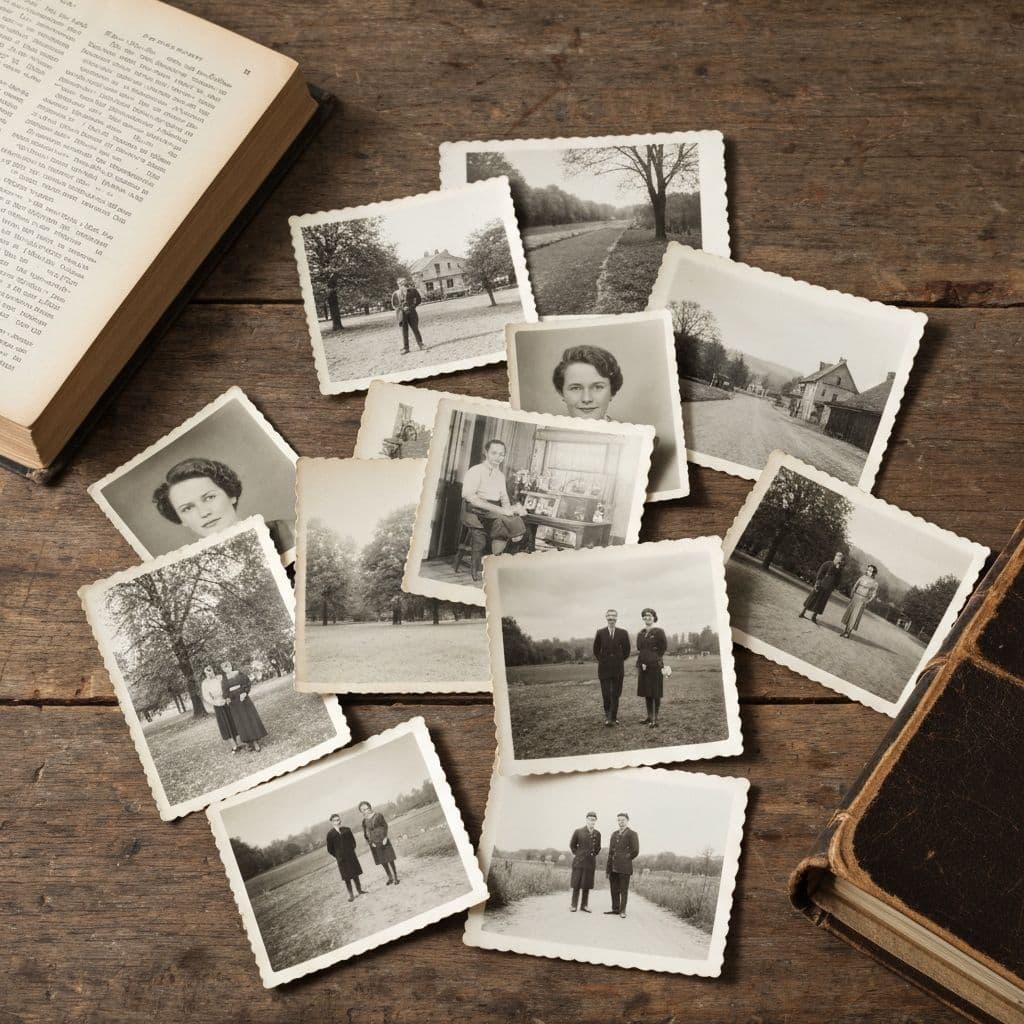
Bad Capture = Bad Restoration
AI photo restoration is constrained by the data it starts with. A badly lit, blurry, perspective-distorted capture of an old photo gives the AI less to work with, which means worse restoration regardless of how good the AI is.
This guide covers the specific capture mistakes that ruin restoration potential, and how to avoid them in 2 minutes per photo.
The Five Critical Factors
1. Light direction
Light should come from the side or above at a shallow angle, not straight down. Side lighting reveals texture (which AI uses for detail recovery). Overhead lighting flattens everything.
Ideal: indirect window light from the side of the photo.
2. Light intensity
Bright enough that your iPhone doesn't need high ISO (which adds noise). Dim enough that highlights don't blow out. Indirect daylight on a bright but not sunny day is ideal.
3. Color temperature
Daylight (5500K) is neutral. Tungsten bulbs (2700K) add orange cast. Fluorescent (4000K) can add green. Mixed lighting (daylight through window + tungsten lamp) creates color casts the AI struggles to neutralize.
Stick to one light source, ideally indirect daylight.
4. Surface
Flat and matte. Any texture (wood grain, patterned fabric) can transfer color subtly. Any curvature creates perspective issues.
Best: black cardstock (EUR 2 at any art store). Second best: flat black foam board.
5. Phone position
Parallel to the photo, directly above. Any tilt creates keystoning (trapezoid distortion) that's hard to fix.
Best: phone mounted on a small tripod. Second best: phone held by two hands, braced on a stable surface.
The Capture Process, Step by Step
Preparation (30 seconds)
- Place black cardstock on a flat surface near indirect daylight
- Set phone to native Camera app
- Enable HDR, disable Live Photos, disable flash
- Switch to 0.5x wide lens if the photo is large; otherwise 1x
Position the photo (20 seconds)
- Place photo flat on the cardstock
- Orient with the light source from the left or right (not directly above or toward the viewer)
- Leave 2-3 cm of black cardstock visible around the photo's edges
Position yourself (30 seconds)
- Hold phone directly above the photo
- Phone screen should be parallel to the cardstock
- Frame so the photo fills 80-90% of the screen
Capture (30 seconds)
- Tap the photo in the viewfinder to set focus and exposure
- Wait 2 seconds for focus/exposure to lock
- Tap shutter button
- Take 2-3 captures for any important photo
Review (10 seconds)
- Zoom in on a face or fine detail at 100%
- Is it sharp? If not, retake with steadier technique or a tripod
Total: about 2 minutes per photo with practice.
Common Mistakes That Kill Restoration Quality
Using flash
Creates glare spots on glossy photos and flattens lighting. Never use flash on old photos.
Shooting in direct sunlight
Creates harsh reflections from any gloss on the photo surface. Indirect daylight only.
Shooting at an angle
Any tilt creates keystoning — the photo appears as a trapezoid rather than rectangle. Post-correction loses sharpness.
Shooting at too low resolution
Zoomed-in views in the camera app don't give you more detail; they crop existing data. Always shoot at maximum resolution and crop later.
Shooting with portrait mode
Portrait mode uses depth effects that blur parts of the image — disastrous for old photo capture. Use standard photo mode.
Shooting through glass
If the photo is in a frame, remove the glass before capturing. Glass creates reflections and reduces sharpness. If you can't remove it (antique frames, valuable mounts), capture at a very slight angle to minimize reflections.
Capturing Tricky Photo Types
Very glossy prints
Angle your light or yourself to move reflections off the image area. Sometimes rotating the photo 45 degrees solves it.
Very small photos (wallet-size or smaller)
Move closer or use the iPhone's 2x optical zoom. Ensure the phone can still focus at that distance.
Oversized photos (larger than A4)
Capture in sections and stitch in a photo editor. Or use a larger flatbed scanner for these specifically.
Photos with texture (embossed, watermarked)
Light from a low angle (almost horizontal) to reveal the texture for authenticity. For restoration purposes, high-angle light minimizes the texture and focuses on the image content.
Photos on curled paper
Flatten first under a heavy book for 24 hours, then capture. Curled paper creates uneven focus and shadow.
After Capture: Do Not Auto-Enhance
iPhones apply automatic adjustments to photos in the Photos app. For old photos being prepared for restoration, turn these off:
- Disable Photos app "Smart Brightness"
- Don't use Auto Enhance
- Don't apply filters
The raw capture is what AI restoration should work with. Auto-enhancements compress tonal range and destroy data useful for restoration.
Comparing to Professional Scanners
An iPhone capture with good technique produces results comparable to a EUR 80-200 flatbed scanner for prints under A4. Professional scanners (EUR 400+) still win for:
- Absolute color accuracy for archival work
- Consistency across hundreds of photos
- Slides and negatives (which need backlighting)
- Oversized prints
For typical family archive work, iPhone captures are not just adequate — they're faster and the resulting restorations are indistinguishable from scanner-based workflows to anyone who isn't evaluating them forensically.
See our scan photos without scanner guide for the full iPhone-based workflow.
Related Guides
- How to scan photos without a scanner
- The ultimate guide to photo restoration
- How to start a family photo archive
Frequently Asked Questions
Do I need an expensive camera to photograph old photos well?
No. A modern iPhone (12 or later) with good capture technique matches the results of any camera for digitizing prints under A4. Expensive cameras (DSLR, mirrorless) offer slight advantages in absolute image quality that are rarely visible after AI restoration processing. For family archive work, an iPhone you already own is the right tool.
What if my iPhone is older than an iPhone 12?
iPhones from 2017 (iPhone X) onward produce acceptable results for photo capture with good technique. Older models can still work but may require better lighting and steadier hands to match newer phones' computational photography. If you're digitizing hundreds of photos and your phone is a 2016 model or older, borrowing a newer iPhone for the project is worth considering.
Should I shoot in RAW format if my iPhone supports it?
ProRAW (iPhone 12 Pro and later) gives you maximum editing flexibility but produces large files that are overkill for most AI restoration workflows. Standard HEIC or JPEG at maximum quality is sufficient for the vast majority of old photo restoration projects. Use ProRAW only if you specifically plan to do extensive manual editing in addition to AI restoration.
Do it yourself with Restory
Advanced AI on your iPhone. 6 restoration tools. Free download.
Download on App StoreMore How-To Guides
How to Restore Photos of Historical Places That No Longer Exist
Family photos sometimes capture places that have changed or disappeared. A guide to restoring these visual time capsules.
How to Restore an Individual Student Photo (School Portrait)
School portraits document every year of childhood. A guide to restoring individual student photos from every era.
How to Restore Flood-Damaged Photos (Emergency Guide)
A flood can destroy decades of family photos in hours. Here's what to do in the first 24 hours and how AI can save damaged photos afterward.