How to Remove Scratches from Old Photos: AI vs Manual
Compare AI and manual methods to remove scratches from old photos. Find the fastest way to fix scratched pictures.
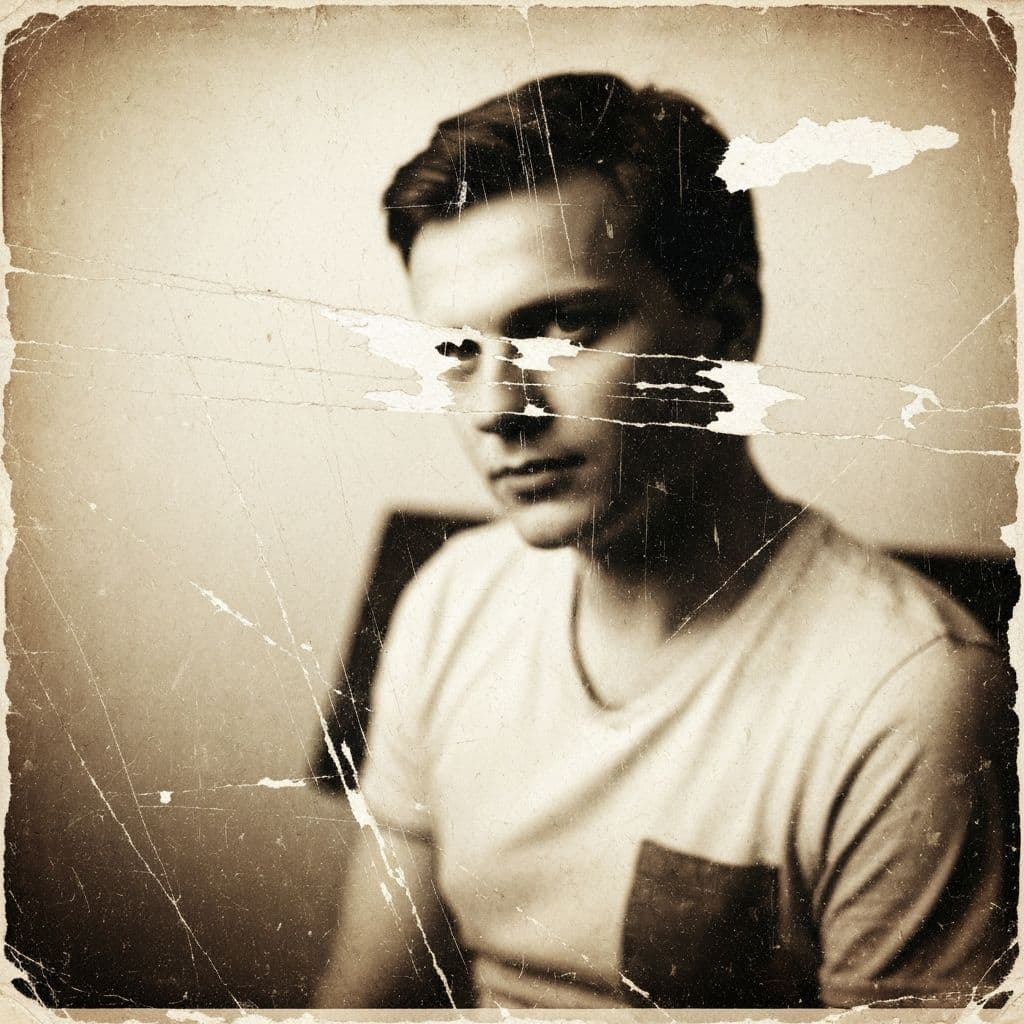
The Scratch Problem: Why Every Old Photo Has Them
Pull any photograph from the 1960s out of a family album and hold it at an angle to the light. You will see them — thin white lines running across the surface, some faint, some deep enough to obliterate the faces underneath. Scratches are the most common form of physical damage to printed photographs, and almost every old photo has them to some degree.
Scratches happen for dozens of reasons. Photos get slid across tables. They are stacked together without separating sheets. Children handle them with sticky fingers. They are pulled in and out of albums with adhesive pages. Decades of handling, storing, and moving leave their marks on the emulsion layer — the thin, fragile coating where the actual image lives.
For years, the only way to remove scratches from old photos was painstaking manual work in Photoshop, using the clone stamp and healing brush pixel by pixel. A single heavily scratched photo could take hours. Today, AI scratch removal tools like Restory can accomplish the same result in seconds. But which approach is actually better? Let us compare them honestly.
Understanding Scratch Types
Not all scratches are created equal, and understanding the type of damage affects which removal method works best.
Surface Scratches
Light marks on the emulsion surface that appear as faint white or light-colored lines. These are the most common and the easiest to remove with any method. The underlying image data is still intact — the scratch simply scatters light differently.
Deep Scratches
Grooves that penetrate through the emulsion into the paper base. These appear as bright white lines because the image layer has been physically removed. Removing these requires the tool — whether human or AI — to reconstruct the missing image data.
Crease Lines
Fold marks that create a complex pattern of cracking in the emulsion. Unlike linear scratches, creases affect a wider area and often distort the underlying image slightly.
Abrasion Damage
Areas where the emulsion has been worn away over a broad surface, typically from friction against another object. This appears as a hazy, lighter area rather than a distinct line.
| Scratch Type | Severity | Manual Repair | AI Repair |
|---|---|---|---|
| Surface scratches | Mild | 5-10 min per photo | Seconds |
| Deep scratches | Moderate | 30-60 min per photo | Seconds |
| Crease lines | Moderate-High | 1-2 hours per photo | Seconds (good results) |
| Abrasion damage | High | 2-4 hours per photo | Seconds (may need touchup) |
Method 1: Manual Scratch Removal in Photoshop
The traditional approach uses a combination of tools in Adobe Photoshop (or GIMP, for a free alternative).
The Clone Stamp Tool
This tool copies pixels from one area and paints them over another. You select a "source" area near the scratch that has similar texture and color, then paint over the scratch. The key is frequently changing your source point to avoid creating visible repetitive patterns.
The Healing Brush
Similar to the clone stamp, but the healing brush blends the copied pixels with the surrounding area. This produces more natural results for most scratches because it matches the texture and lighting of the destination area.
Content-Aware Fill
Photoshop's Content-Aware Fill analyzes the surrounding area and generates replacement content for a selected region. It works well for large damaged areas but can produce odd results near edges, faces, or complex patterns.
The Manual Workflow
- Scan at high resolution (600+ DPI) so you have maximum detail to work with
- Create a new layer so your edits are non-destructive
- Zoom to 200-300% so you can see individual scratches clearly
- Start with the Healing Brush on lighter scratches — it handles most surface damage well
- Switch to Clone Stamp for areas near edges, faces, or where the healing brush produces artifacts
- Use Content-Aware Fill for large damaged areas
- Zoom out frequently to check your work at normal viewing size
Pros of Manual Removal
- Total control over every pixel
- Highest possible quality when done by a skilled retoucher
- Handles unusual cases that confuse AI (text over scratches, scratches through patterned clothing)
- Non-destructive workflow when using layers properly
Cons of Manual Removal
- Extremely time-consuming — a heavily scratched photo can take 2-4 hours
- Requires skill — beginners often create visible patches that look worse than the scratches
- Expensive software — Photoshop costs $20.99/month
- Fatigue errors — after an hour of clone-stamping, your eyes and hands tire, and quality drops
Method 2: AI Scratch Removal
AI-powered scratch removal uses neural networks trained on thousands of examples of scratched and clean photo pairs. The AI learns to identify scratch patterns — their characteristic shape, brightness, and texture — and predict what the underlying image should look like.
How It Works
- Upload your scanned photo to an AI tool like Restory
- Select the scratch removal feature — the AI analyzes the entire image
- The model identifies scratches — distinguishing them from intentional image elements like thin lines, hair, or fence wires
- Reconstruction — the AI fills each scratch with generated content that matches the surrounding area
- Download the result — typically in seconds
Restory offers a dedicated Remove Scratches feature alongside five other specialized AI tools. You can see the full set of restoration features on the Restory website.
Pros of AI Removal
- Incredibly fast — processes an entire photo in seconds
- No skill required — upload, tap, done
- Consistent quality — the AI does not get tired or make fatigue errors
- Handles thousands of scratches simultaneously — even heavily damaged photos with hundreds of marks
- Affordable — Restory's annual plan costs just EUR 39.99/year compared to Photoshop's EUR 252/year
Cons of AI Removal
- Less control over individual areas
- Occasional false positives — the AI may interpret thin image elements (fishing line, antenna wire) as scratches
- Complex patterns near scratches may be simplified slightly
- Dependent on scan quality — a poor scan gives the AI less to work with
Head-to-Head: AI vs Manual Results
For the vast majority of old family photos, AI scratch removal produces results that are indistinguishable from expert manual work. In a blind test, most people cannot tell which method was used.
Where manual work still has an edge is in unusual cases: scratches that cross small text, scratches through highly patterned areas (like plaid fabric), or photos where the scratches coincide with important fine details.
However, these edge cases represent perhaps five percent of all scratched photos. For the other 95 percent — the family portraits, the vacation snapshots, the candid moments — AI handles scratches as well as or better than manual work, in a fraction of the time.
The Time Factor
This is where AI is not just better — it is in a completely different category:
| Scenario | Manual Time | AI Time |
|---|---|---|
| Lightly scratched portrait | 15 minutes | 5 seconds |
| Moderately scratched group photo | 45 minutes | 5 seconds |
| Heavily scratched landscape | 2 hours | 5 seconds |
| Album of 20 scratched photos | 10-40 hours | 2 minutes |
If you have a single museum-quality photograph that needs pixel-perfect restoration by a trained professional, manual work may be worth the investment. If you have a box of family photos that need scratches removed so you can share them with relatives, AI is the obvious choice.
Best Practices for AI Scratch Removal
To get the best possible results from AI scratch removal, follow these tips:
Scan Properly
Scan at 600 DPI minimum. Clean the scanner glass — dust on the glass adds new scratches to your digital copy that the AI then has to remove along with the real ones.
Do Not Pre-Process
Upload the raw scan without applying any filters or adjustments first. Sharpening a photo before scratch removal makes the scratches more prominent and harder for the AI to distinguish from image detail.
Handle Remaining Damage Separately
After removing scratches, you may notice other types of damage — fading, blurry faces, missing color. Address these with dedicated tools. For a complete restoration workflow, follow our step-by-step photo restoration guide.
Check the Results Carefully
Zoom in on important areas — particularly faces — to make sure the AI has not removed any actual image detail. If you spot an issue, you can always use a manual touchup on just that small area.
The Hybrid Approach
For valuable or complex photos, the smartest approach combines both methods:
- Run AI scratch removal first to handle the bulk of the damage in seconds
- Inspect the result at 100% zoom, focusing on faces and fine details
- Touch up manually any spots where the AI produced an imperfect result
This hybrid workflow gives you 95 percent of the result in seconds and lets you spend your limited manual effort only where it actually makes a difference. Most people find that after AI processing, there is little or nothing left to touch up.
Beyond Scratches: Complete Restoration
Scratches are rarely the only problem with an old photo. Once you have removed them, you will likely notice fading, color shifts, blurry faces, and other issues that were hidden behind the distracting scratch marks. Restory's full suite of six AI tools — including Colorize, Enhance, Restore Faces, and more — lets you address every type of damage in a single app.
Your Photos Are Worth Saving
Those scratched photographs in your family album are not ruined. The faces behind the damage are still there, waiting to be revealed. Whether the scratches came from decades of handling, a move across the country, or a child's curious fingers, they can be removed completely in seconds.
Stop looking past the scratches and start seeing the memories underneath. Download Restory and watch those white lines disappear.
<!-- cross-links -->Related Reading
Compare in depth:
Other alternatives:
Restore your photos with Restory
AI to colorize, repair, and animate old photos. 32 languages, free trial.
Try Restory